
Appearance
Variants, weight & modifiers
Some products need a choice before they go in the cart. When you tap one, the register pops up the right question — pick a variant, enter a weight, or choose add-ons — then adds the line.
Every one of these popups is laid out the same way: the product stays pinned at the top, the choices scroll in the middle, and the action bar stays pinned at the bottom with the quantity, the running total and Add to cart. You never have to scroll to find the button.
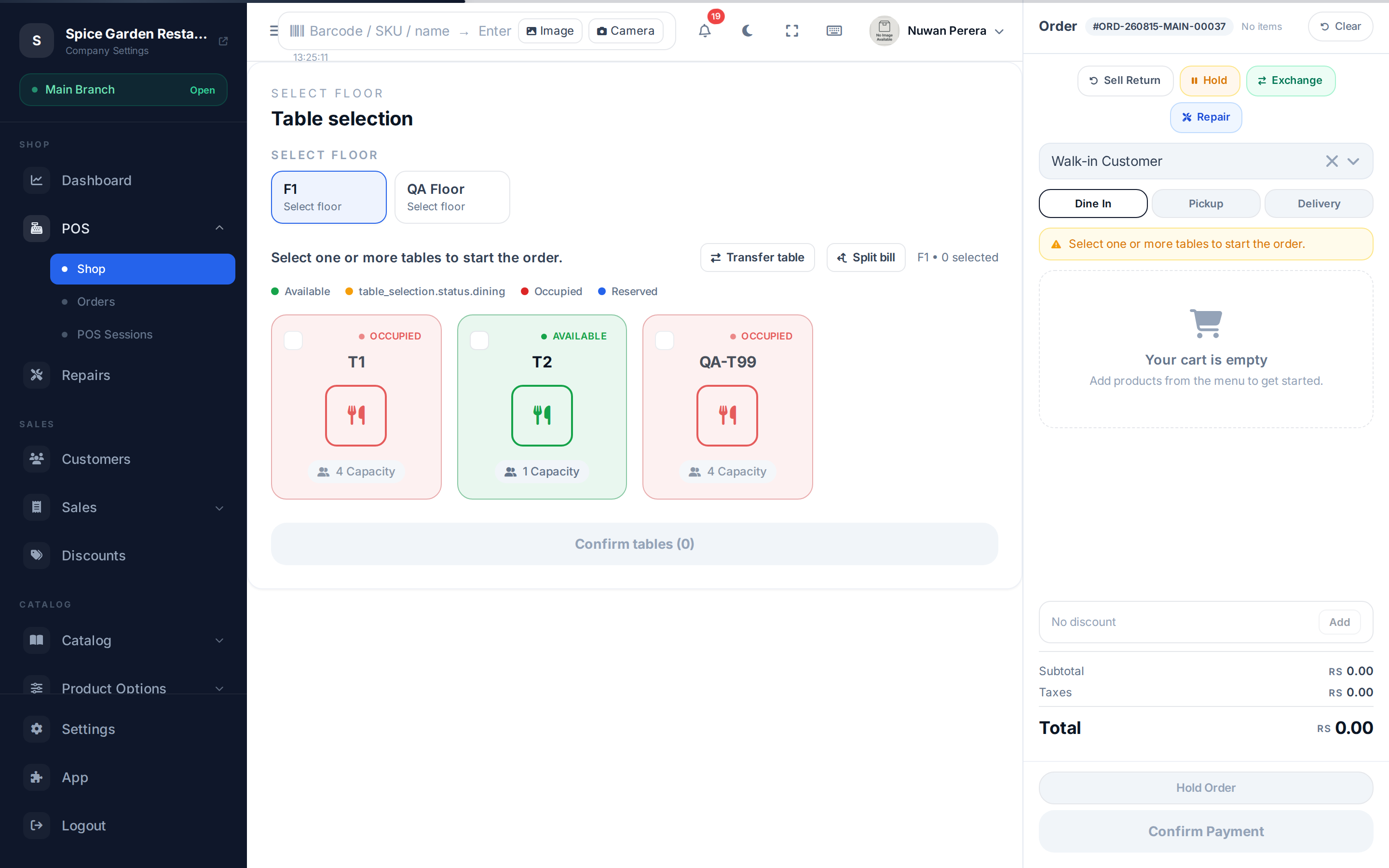
Screenshot pendingRoute / and tap a variable/weight/modifier product
Which prompt appears
The register decides based on the product. If several apply, it asks in this order: weight, then variant, then bundle, then modifiers.
| Product is… | You'll see | You do |
|---|---|---|
| Sold by weight | Weight entry | Type or read the weight |
| A variable product (badge: Variable) | Variant picker | Pick the exact one |
| A bundle (badge: Bundle) | Bundle contents | Confirm — see Selling bundles |
| Has modifier groups | Modifier picker | Choose the add-ons |
Variants (size, colour, storage)
A variable product — a T-shirt in several sizes, a phone in several storages — opens a list of its variants. Each row shows the variant's label, its code and its own price. Pick one and select Add to cart. Out-of-stock variants are marked Unavailable and can't be chosen; the first in-stock one is selected for you, and the picture at the top follows whichever variant you pick.
INFO
Variants only load when the variations module is on. If it's off, the picker shows no variants.
Weight items (loose produce, meat)
Products sold by weight open a weight entry. Type the weight and a live preview shows weight × unit price = line total before you add it.
- Multiple units — if the product has more than one sell unit, pick the unit (for example kg vs g) first; the preview also shows the base-unit quantity.
- Simple products toggle between kg / g / lb.
- Weighing scale — if a compatible scale is connected, the weight fills in automatically from a live reading (connect/disconnect from the status bar). A weight embedded in a scanned barcode also pre-fills the field.
Select Add to Cart once the weight is above zero.
Modifiers (extras and options)
Products with modifier groups — "extra cheese", "no onions", "choose a sauce" — open a modifier picker. Groups come in three styles:
- Pick one (radio) — choose a single option.
- Pick several (multi-select) — toggle any number, up to the group's limit.
- Quantity (+ / −) — set how many of each, like "2 × extra shot".
Each group is labelled Required or Optional and tells you its rule ("Choose up to 3", "Choose at least 1", …). A group you have started but not finished shows the missing bit in red right under its options, and the action bar says what is still needed. Add to cart stays disabled until every group is valid, and its running total updates as you pick. Options that cost nothing show no price. The chosen options show as a chip on the cart line.
Set the quantity before adding
All of these popups carry a − 1 + stepper next to Add to cart, so you can add four of the same configured item in one go instead of tapping the product four times. The total on the button is the line total for that quantity.
- For a bundle, the quantity is the number of complete bundles.
- For a weight item the weight is the quantity, and for a serial item the count of serial numbers you entered is — so those show the figure instead of a stepper.
- If the same configured line is already in the cart, the quantity is added to it.