
Appearance
Company settings
Your company profile is the identity of your business inside ZeylonPOS. The name, logo, address and tax number you enter here print on receipts, sales invoices and other documents, so it's worth getting right early.
🔷 For managers & admins
Editing the company profile needs the
settings.general.update permission — typically an admin or manager. Anyone can view it if they can open Settings. 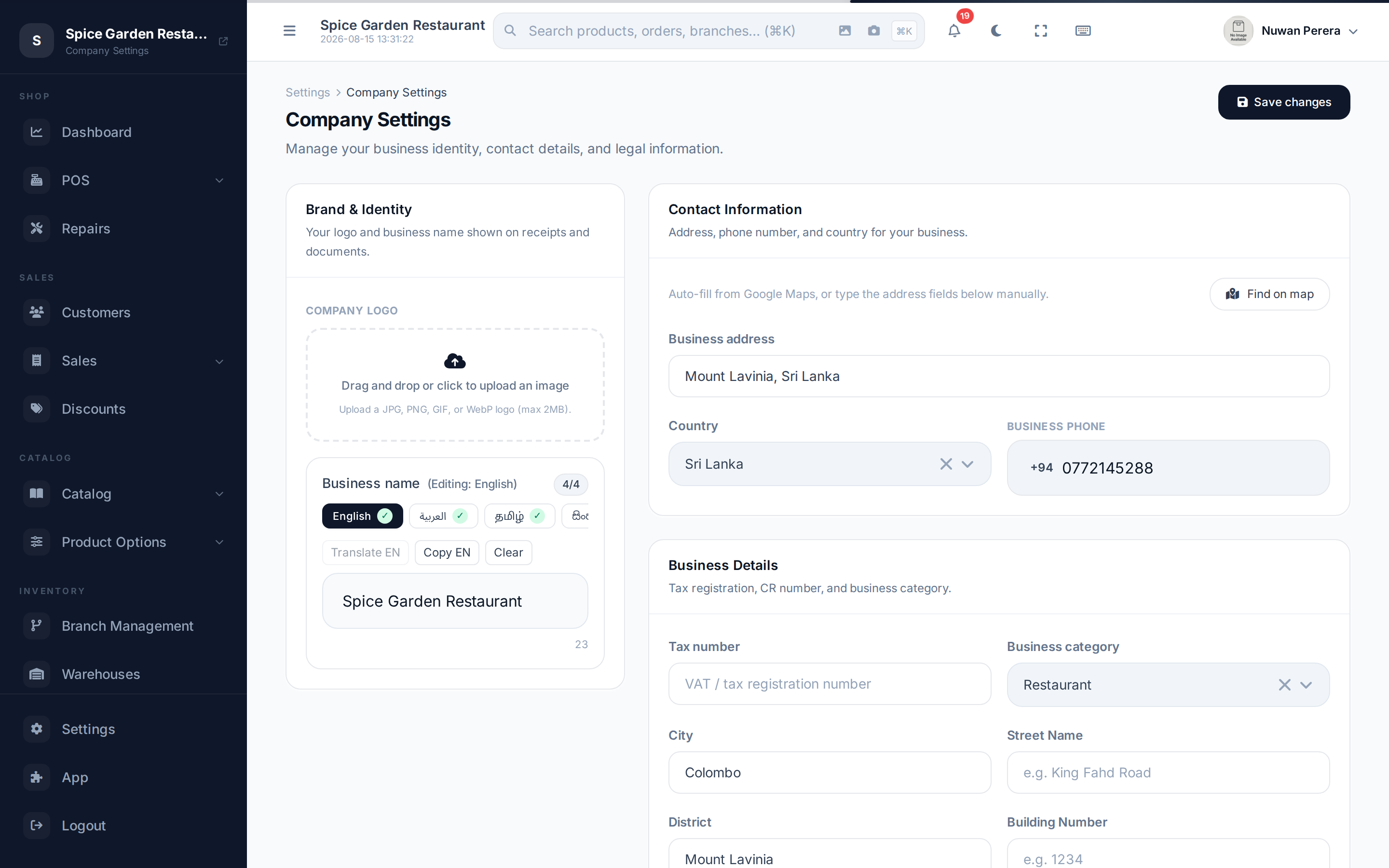
Screenshot pendingRoute /settings/company, logged in as an admin
Step by step
- Go to Settings → Company (or open
/settings/company). - Upload your logo by dropping an image into the logo box. It can appear at the top of receipts (see Receipts).
- Enter your store name. You can type it in each language using the language tabs.
- Fill in your contact details — address, country and phone. You can use the map picker to auto-fill the address fields.
- Add your business details — tax number, category, and the address breakdown (city, street, district, building, postal zone).
- Select Save.
Fields
| Field | What it's for |
|---|---|
| Logo | Business logo, shown on receipts when enabled |
| Store name | Your business name, per language |
| Address | Free-text address (auto-fills from the map picker) |
| Country | Sets phone formatting and country-specific fields |
| Phone | Contact number, formatted for the chosen country |
| Tax number | Your VAT / tax registration number |
| CR number | Commercial Registration number — shown for Saudi Arabia only |
| Category | Your business type (retail, restaurant, etc.), defaults to retail |
| City / Street / District / Building / Postal zone | Structured address parts used on tax invoices |
INFO
The CR number and the detailed address parts (street, district, building, postal zone) matter most for Saudi Arabia, where they are required on ZATCA-compliant tax invoices. See ZATCA e-invoicing.