
Appearance
Setting up kitchen stations
A station is one kitchen screen. You create stations in ZeylonPOS, decide which branch's orders each one shows, then pair a tablet or monitor to it. After that, every order rung up flows to the right screen automatically — see Using the Kitchen Display for the cook's side.
🔷 For managers & admins
Managing stations lives inside the Kitchen Display module. Viewing stations needs
kds.stations.read; adding, editing and pairing need kds.stations.create / kds.stations.update; removing needs kds.stations.delete. The module may be a paid add-on on some plans. 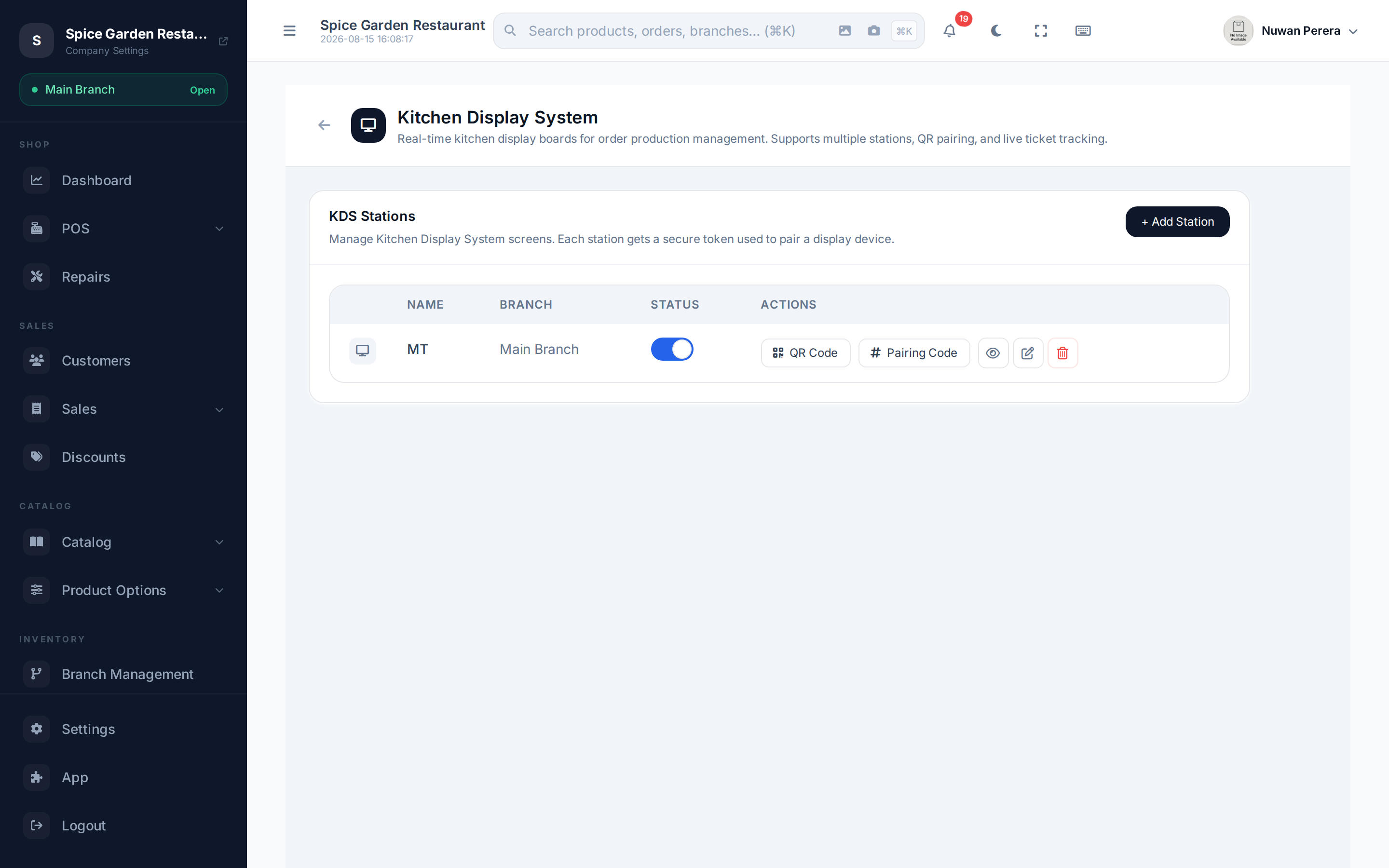
Screenshot pendingRoute /app/kds/config, logged in as an admin
Before you start
Kitchen tickets are only created for orders at a branch running Restaurant mode. Make sure the branch you're feeding has restaurant mode on, or its orders will never reach a screen.
Turn on the Kitchen Display module
- Open the App marketplace at
/app. - Find Kitchen Display (module code
kds). If it's Locked, subscribe to it first (see Modules). - Flip its toggle on, then select Configure — this opens the KDS Stations screen.
Add a station
- On the KDS Stations screen, select + Add Station.
- Give it a name your team recognises — e.g. Grill Station, Cold Station, Main Pass.
- Choose a Linked Branch, or leave it blank:
- Linked to a branch — the screen shows only that branch's orders.
- Blank (all branches) — the screen shows every restaurant order across the business. Good for one central kitchen.
- Select Add Station.
Where orders go — routing
There's no per-item routing to set up: tickets route by branch.
So the pattern is simple: one station per kitchen, linked to its branch. If you run a single kitchen for the whole company, leave the station unlinked and every order lands there.
Pair a display device
Each station carries its own secure token. Open the KDS app on the kitchen tablet, then pair it one of two ways from the station's row:
| Method | How | Notes |
|---|---|---|
| QR Code | Select QR Code, then scan it with the KDS app's camera | Doesn't expire — regenerate the token to invalidate it |
| Pairing Code | Select Pairing Code, type the 6 digits into the KDS app | Valid for 5 minutes, then generate a new one |
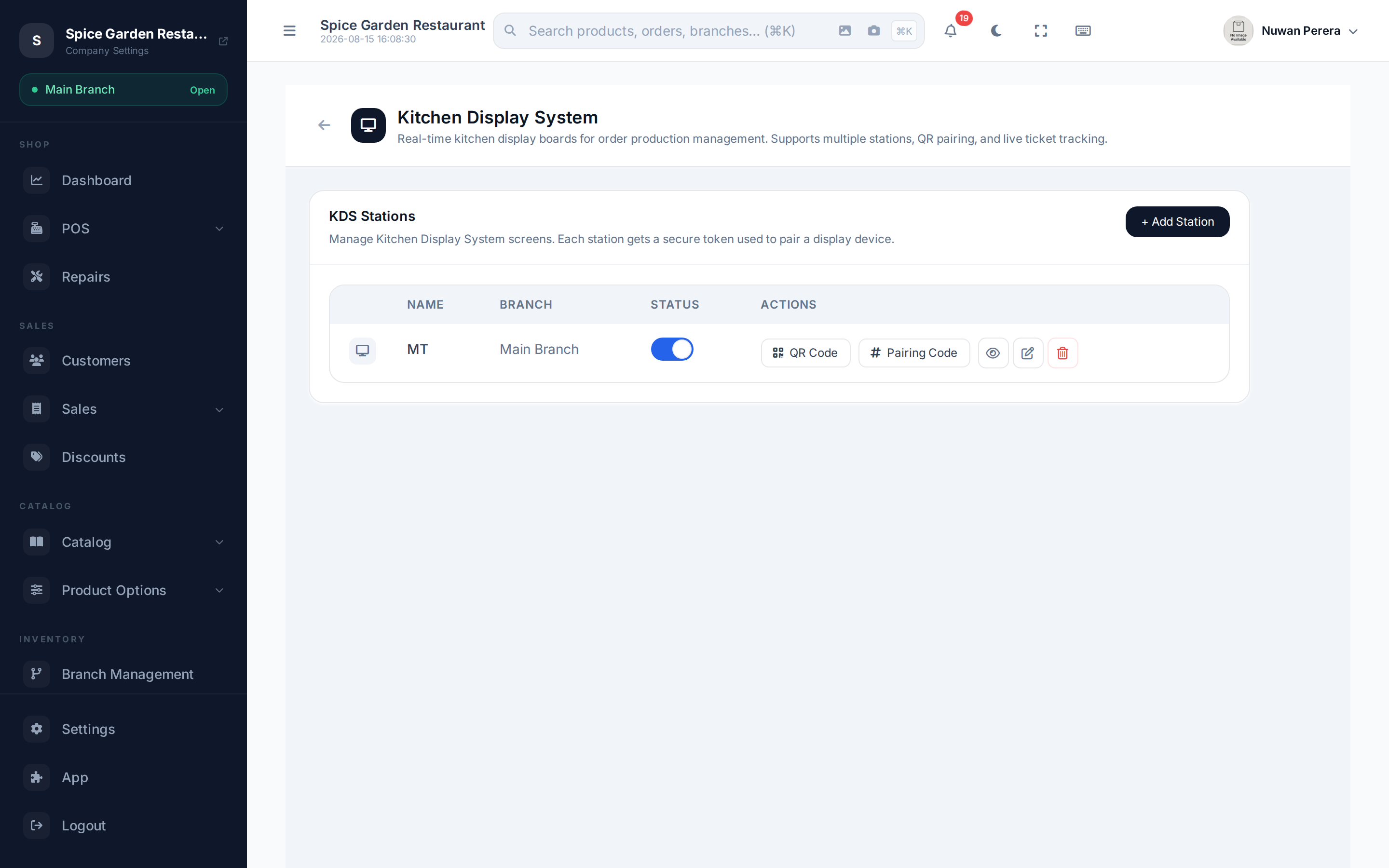
Screenshot pendingRoute /app/kds/config, open a station's QR Code dialog
Once paired, the screen stays connected across restarts. Several screens can pair to the same station and they'll all stay in sync.
Enable, rename, auto-advance & delete
From each station's row you can:
- Toggle it on/off — a disabled station stops receiving new tickets.
- Rename it, and set auto-advance timers: move overdue tickets New → Production after so many minutes, and Production → Ready after so many more. Leave a field blank to skip that stage. Bumping is always manual — auto-advance never clears a ticket off the board on its own.
- Delete it (this can't be undone; paired screens will need re-pairing).