
Appearance
Payment methods
Payment methods are the options a cashier can pick at checkout. Set up the ones your business accepts and control the order they appear in.
🔷 For managers & admins
Managing payment methods needs
settings.payment-methods.read to view and settings.payment-methods.create / settings.payment-methods.update to add or edit. 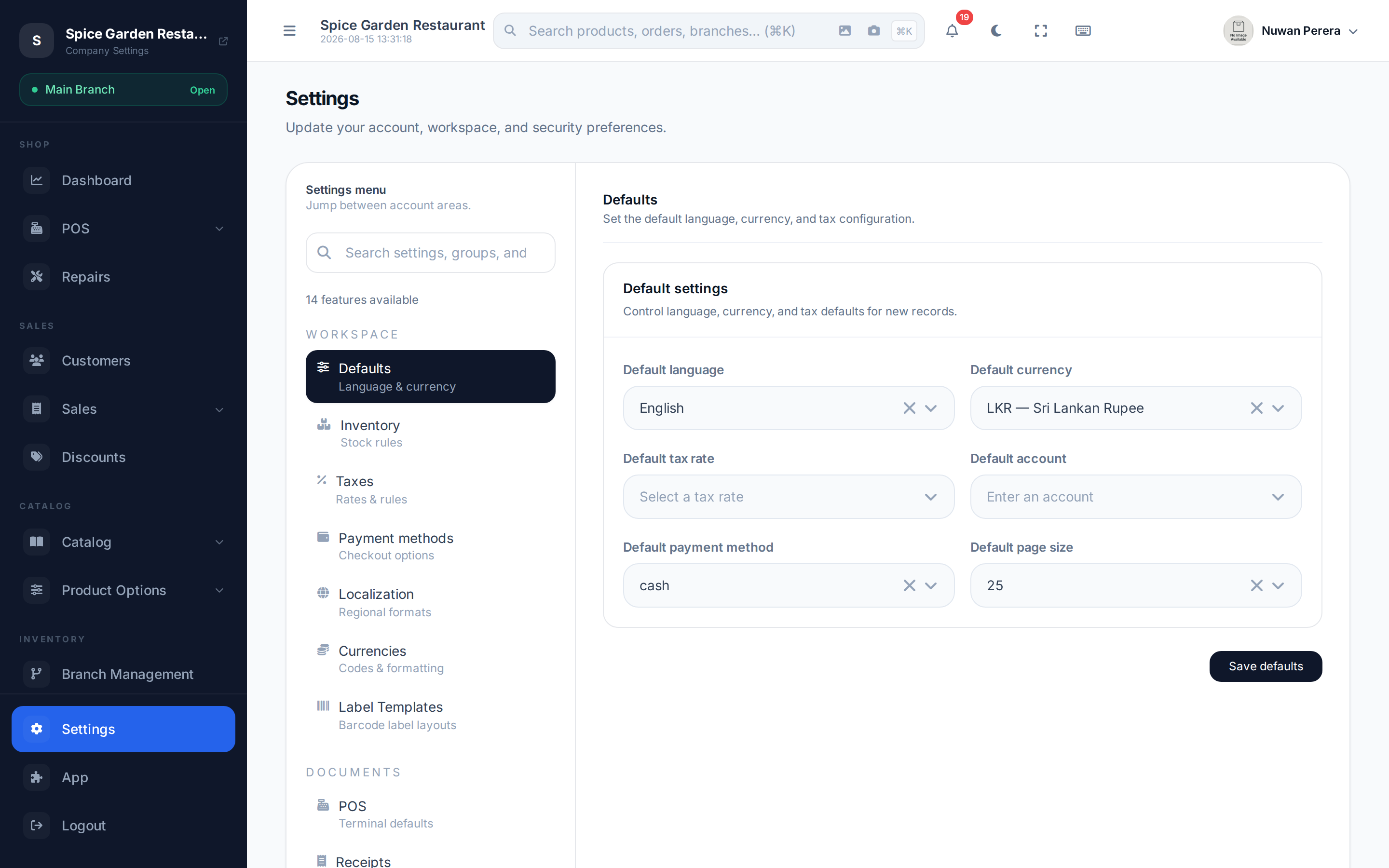
Screenshot pendingRoute /settings, Payment methods tab selected
Adding a method
- Open Settings → Payment methods.
- Select Add and enter a name (e.g. "Cash", "Visa") and code.
- Choose the type — standard or split.
- Set the sort order to control where it appears in the checkout list.
- Set it enabled and select Save.
Fields
| Field | What it does |
|---|---|
| Name | Label shown at checkout |
| Code | Short code used internally and in reports |
| Type | Standard (a single tender) or Split (a combination) |
| Sort order | Position in the checkout list (lower shows first) |
| Split methods | For a split type — the methods it combines |
| Enabled | Whether cashiers can select it |
Standard vs split
- Standard — one payment type, like cash or a single card.
- Split — a preset that lets a sale be paid across several methods at once (for example part cash, part card). Choose which methods it can combine.
TIP
Set your most-used method (usually cash) with the lowest sort order so it's the first button, and pick the pre-selected method in General settings → Defaults.
Cashiers use these at the till — see Taking payment & checkout.