
Appearance
Setting up Restaurant mode
Restaurant mode turns ZeylonPOS from a counter till into a table-service system. Once it's on you get floor plans and tables, a table picker at the register, split and transfer bills, and — paired with the Kitchen Display — tickets that fly to the kitchen the moment an order is placed.
Turning it on is a two-step switch, and both steps are required before a single table appears at the till. This article walks through both.
🔷 For managers & admins
You need a manager or admin role. Enabling the module needs
settings.apps.update; editing floors and tables needs settings.floors.update / settings.tables.update; turning restaurant mode on for a branch needs the branch's POS configuration permission. Restaurant Management may be a paid add-on on some plans — see Subscription & billing. 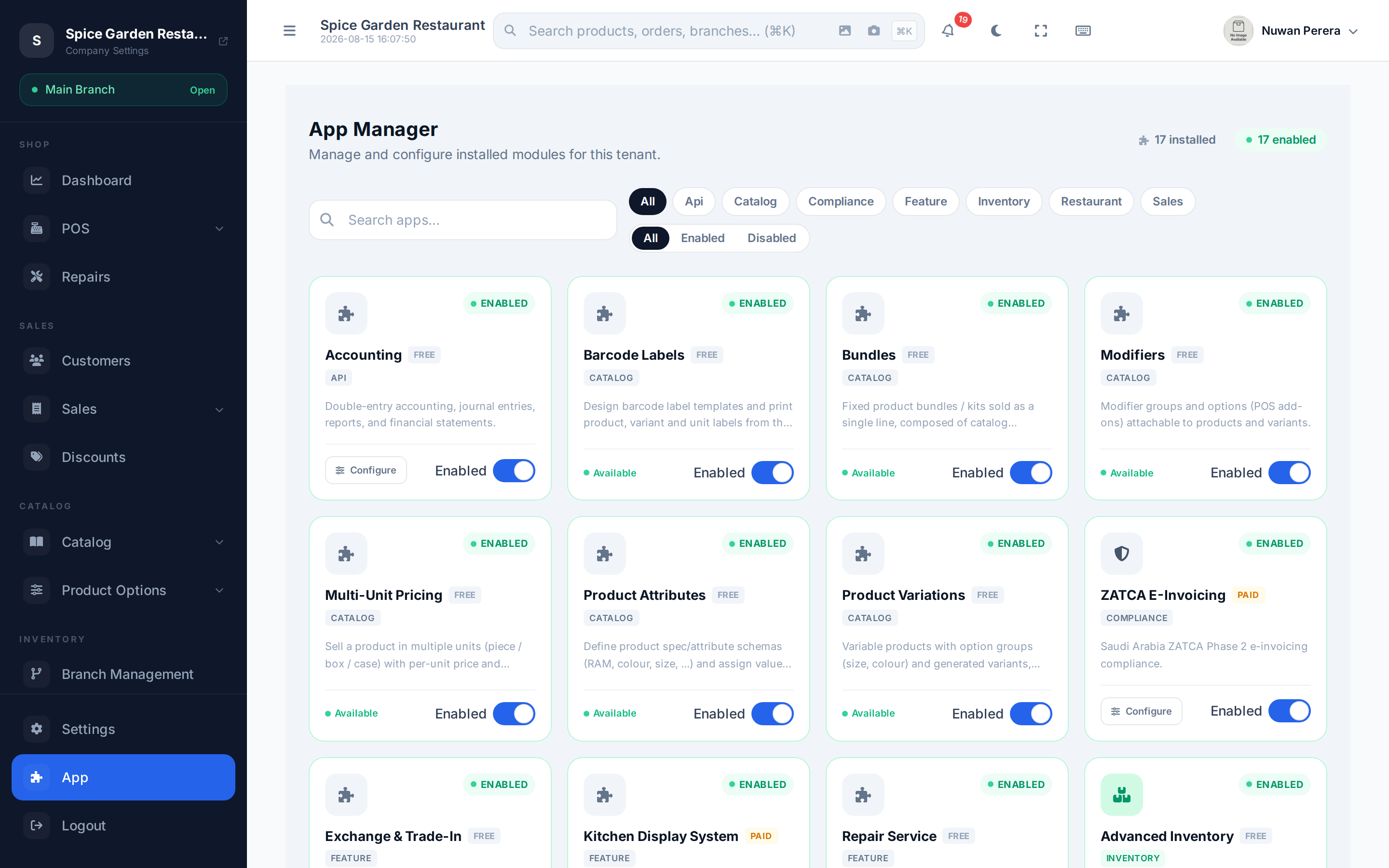
Screenshot pendingRoute /app, search 'restaurant', logged in as an admin
What you need — prerequisites
| # | What | Where | Why |
|---|---|---|---|
| 1 | Restaurant Management module enabled | App marketplace (/app) | Unlocks floors, tables and the table UI tenant-wide |
| 2 | Restaurant mode enabled for the branch | Branch POS configuration | Turns the table picker on at that branch's register and pushes kitchen tickets |
| 3 | (Plan) Restaurant Management in your subscription | Subscription | Paid add-on on some plans; the card shows Locked if not included |
| 4 | (Optional) Kitchen Display module | Kitchen stations | Sends order tickets to kitchen screens |
Both switches are required
The register only shows tables when the module is on AND the branch has restaurant mode enabled. Enable the module but forget the branch, and the till still looks like a normal counter. Step 2 is the one people miss.
Step 1 — Enable the Restaurant Management module
- Open the App marketplace at
/app. - Search for Restaurant (or filter by type).
- Flip the Restaurant Management card's toggle on. If it shows Locked, it's a paid add-on — Subscribe first (see Modules).
- Select Configure on the card to open its settings — it has Floors and Tables tabs.
The module's code is restaurant. When it's on, the floors/tables screens and the register's table picker become available — Step 2 switches them on where you sell.
Step 2 — Turn restaurant mode on for the branch
Restaurant mode is set per branch, in that branch's POS configuration. A coffee kiosk and a dine-in floor can live in the same company — only the branches you flag run table service.
- Go to Branches and open the branch you want (or Branches → POS config).
- In the branch's POS configuration, turn Restaurant mode on.
- Save.
See Branch POS configuration for the full screen. The register reads this from the open shift's branch, so a cashier must be signed in to a shift at that branch for the tables to appear.
Step 3 — Build your floor plan
Open the Restaurant Management module's Configure screen (/app/restaurant/config). It has two tabs:
- Floors — the areas of your venue (Ground Floor, Terrace, VIP). Each floor belongs to a branch.
- Tables — the tables on each floor, with a seat count. Tables are what cashiers pick and what the kitchen ticket labels.
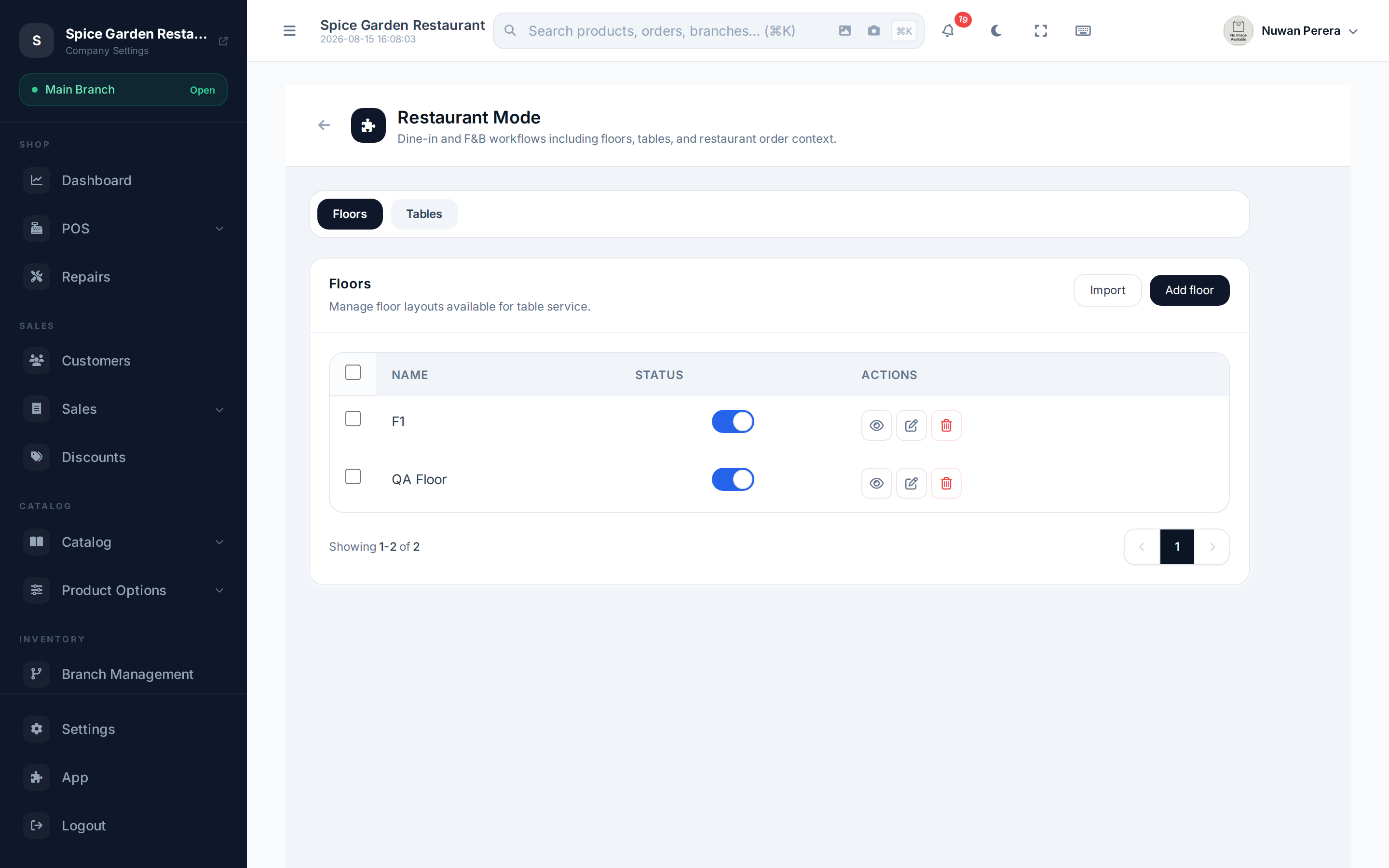
Screenshot pendingRoute /app/restaurant/config?tab=floors, logged in as an admin
You can also reach these from Settings — the floor and table create/edit pages deep-link back into this module. The full editor (including bulk import from a spreadsheet) is covered in Floors & tables.
TIP
Create floors first, then add tables to them — a table must sit on a floor. Give tables the names your staff already say out loud ("T1", "Window 3") so the kitchen ticket makes sense at a glance.
How it looks at the register
With both switches on and a shift open at a restaurant branch, the POS opens on the table picker instead of the product grid:
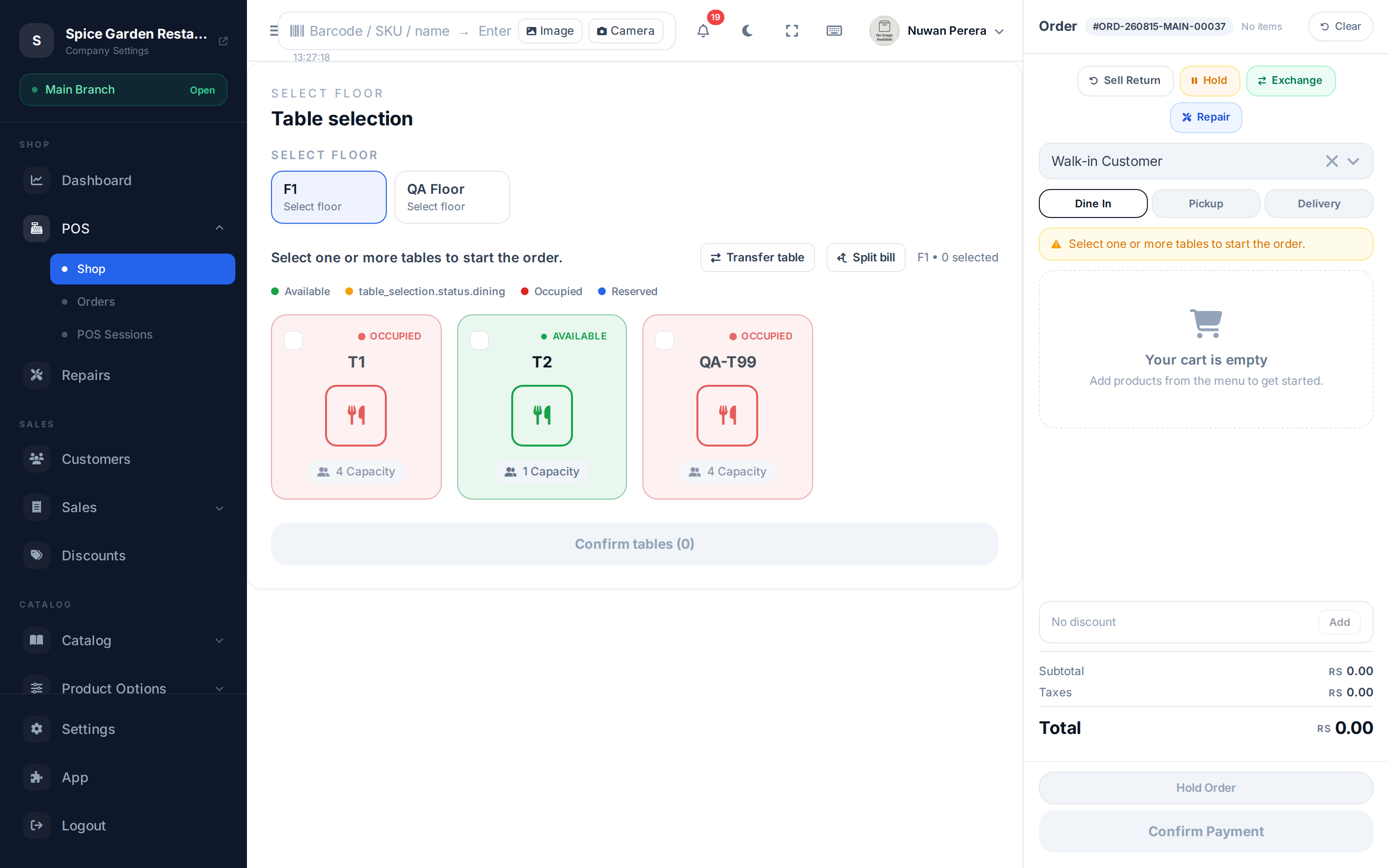
Screenshot pendingRoute /, restaurant branch with an open shift
- Pick a floor from the row of floor buttons.
- Tap a table (or several — you can seat a party across tables). A colour legend shows each table's state: available, dining, occupied, reserved.
- Select Confirm to start the order for that table. The order builds like any other sale — see Making a sale.
Two extra actions appear once a table is occupied (each behind its own permission):
| Action | What it does | Permission |
|---|---|---|
| Transfer | Move an open order from one table to another | settings.tables.transfer |
| Split | Split one table's bill into separate checks | settings.tables.split |
Turning it off
Flip the module off in the marketplace to hide floors, tables and the picker everywhere — or turn restaurant mode off for a single branch to send just that till back to counter mode. No data is deleted; your floors and tables come back when you switch it on again.